Explore Computer Components and Their Roles
Computer components are the parts that work together to process information, run software, store files, and connect a system to displays and networks. A typical desktop build includes a processor, motherboard, memory, storage, graphics hardware, power supply, and cooling, while a laptop or compact PC may integrate several of these parts. Individual components are also useful for repairs, performance upgrades, and custom builds for gaming, creative work, study, or office tasks. Understanding how each part contributes can make product comparisons more practical: a faster processor cannot compensate for incompatible memory, and a powerful graphics card needs a suitable power supply and case. Ubuy offers a way to discover computer components from international brands and product ranges. Start by identifying your system type, intended workload, and upgrade goals.
- Parts support processing, storage, graphics, and connectivity
- Suitable for new builds, repairs, and upgrades
- Match every part to the intended system
Processors, Motherboards, and Memory
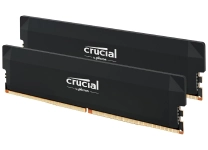
The central processing unit (CPU) handles instructions and strongly influences responsiveness in applications, multitasking, and games. Compare processor families, core and thread counts, clock speeds, and the socket required by your motherboard; Intel and AMD offer widely recognized desktop and laptop processor lines. The motherboard connects the CPU, memory, storage, graphics, and peripherals, so check its socket, chipset, form factor, expansion slots, and rear-panel ports. Random access memory (RAM) temporarily holds data used by active programs. Capacity, memory generation, speed, and module configuration all matter, and the motherboard and processor must support the chosen RAM. For everyday work, gaming, or demanding creation tasks, balance these parts rather than selecting by one headline specification. Confirm the exact model requirements before purchasing.
- Check CPU socket and motherboard chipset
- Match RAM generation, speed, and capacity
- Consider workload before choosing performance tiers
Graphics, Storage, Power, and Cooling
A graphics processing unit (GPU) renders images and video, with a dedicated graphics card often preferred for demanding games, 3D applications, and accelerated creative software. Check its dimensions, interface, display outputs, and power requirements against the case and power supply. Storage options include solid-state drives (SSDs), which offer responsive access, and hard disk drives (HDDs), which can suit larger file libraries; verify interface, capacity, and physical format, such as M.2 or 2.5-inch. The power supply unit (PSU) must provide suitable connectors and adequate capacity for the complete build. Cooling may use air-based CPU coolers, fans, or liquid-cooling systems, depending on component needs and case support. Good airflow helps manage heat, while noise, clearance, and installation requirements also deserve attention.
- Match GPU dimensions, outputs, and power needs
- Compare SSD and HDD formats and capacity
- Plan PSU connections and case airflow
Compatibility, Form Factors, and Connectivity
Compatibility is central when assembling or upgrading a PC. Check the motherboard form factor—commonly ATX, micro-ATX, or Mini-ITX—against the case, and confirm that the case has room for the graphics card, cooler, storage, and power supply. Processor socket, RAM generation, motherboard firmware support, and available expansion slots can determine which parts work together. Review connectivity for the devices you use: USB ports, audio connections, Ethernet, Wi-Fi, Bluetooth, and display outputs vary by board and add-in card. Storage drives need a supported connector and an available slot or bay. For upgrades, record the exact model numbers of existing parts and consult manufacturer specifications before choosing replacements. This simple compatibility check can help prevent fit, connection, and performance mismatches during installation.
- Match motherboard and case form factors
- Verify sockets, slots, connectors, and clearances
- Check ports and wireless needs before buying
Accessories, Upgrades, and Component Care
A complete build may also need case fans, thermal paste, mounting hardware, cable extensions, Wi-Fi adapters, or a card reader, depending on the system and motherboard. Gaming and creative work can call for stronger graphics or more memory, while a storage upgrade may help with large project files and game libraries. For office and study computers, quiet cooling, dependable connectivity, and suitable ports may matter more than maximum processing power. Before installing parts, shut down and disconnect the system, follow product instructions, and handle circuit boards carefully to reduce the risk of damage from static electricity. Keep vents clear and periodically remove accumulated dust using appropriate methods. Ubuy can help shoppers discover international component options when comparing specifications, formats, and upgrade possibilities for a planned system.
- Consider fans, adapters, and mounting accessories
- Choose upgrades around real workloads
- Follow safe installation and cleaning practices
Select the Right computer components
Choose computer components as a coordinated set, beginning with the purpose of the system and a realistic budget. For a new build, select a processor and motherboard platform first, then confirm compatible RAM, case size, storage, graphics, cooling, and power supply. For an upgrade, identify current hardware and the specific limitation you want to address; check manufacturer specifications for supported parts, connectors, clearances, and software requirements. Compare capacity and performance alongside practical details such as noise, energy use, expansion options, and installation complexity. Read product listings carefully for model numbers, included accessories, and technical specifications rather than relying on product names alone. Whether building a gaming PC, workstation, or everyday desktop, a compatibility-first approach makes it easier to compare computer parts and choose a configuration that fits your needs.
- Start with your workload and budget
- Verify specifications and model numbers
- Build a balanced, compatible configuration